How to Activate the Ryzo App
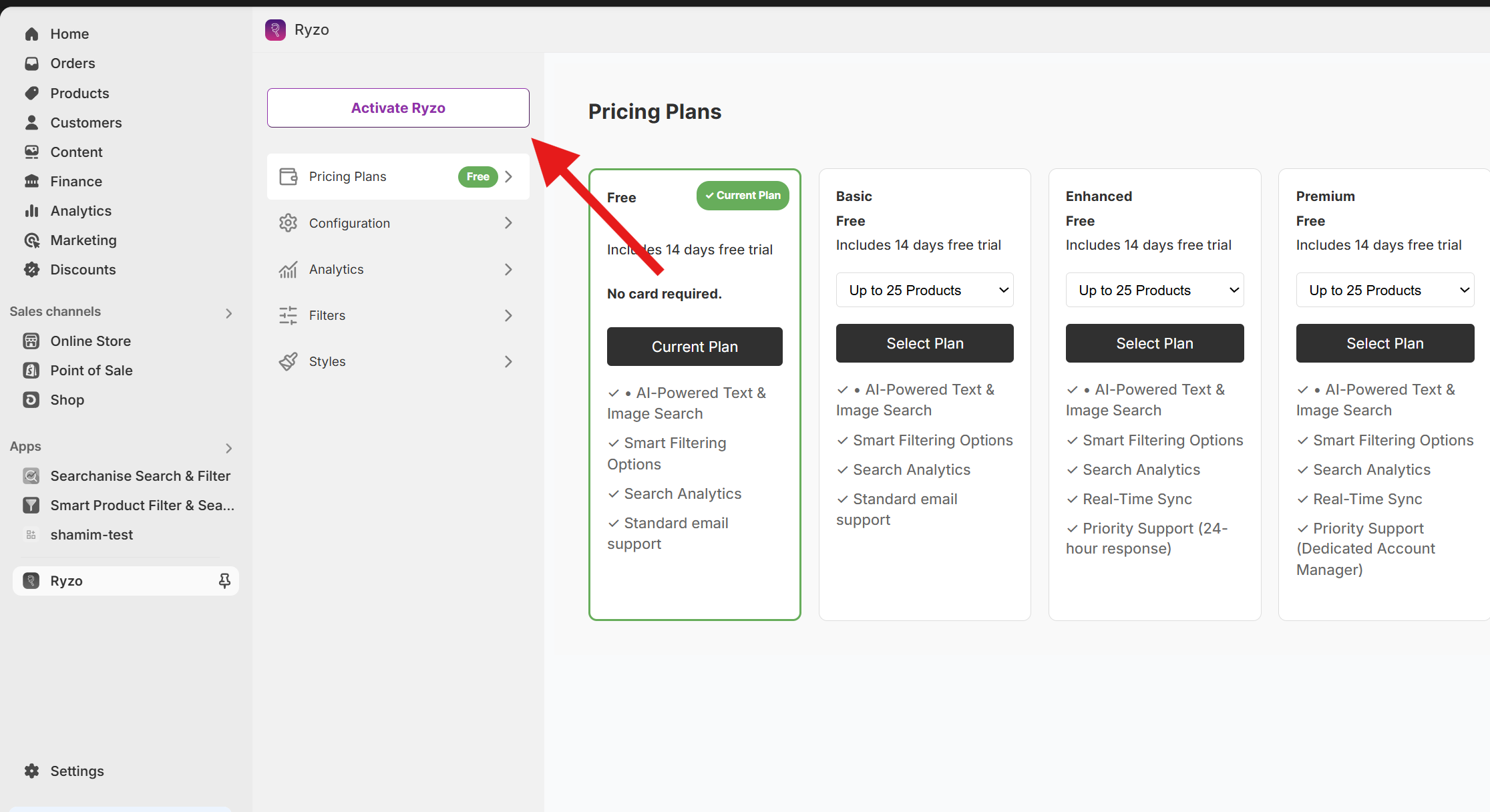
- Go to Apps in your Shopify admin panel, next, go to Ryzo admin panel, in here you can see the Activate Ryzo button
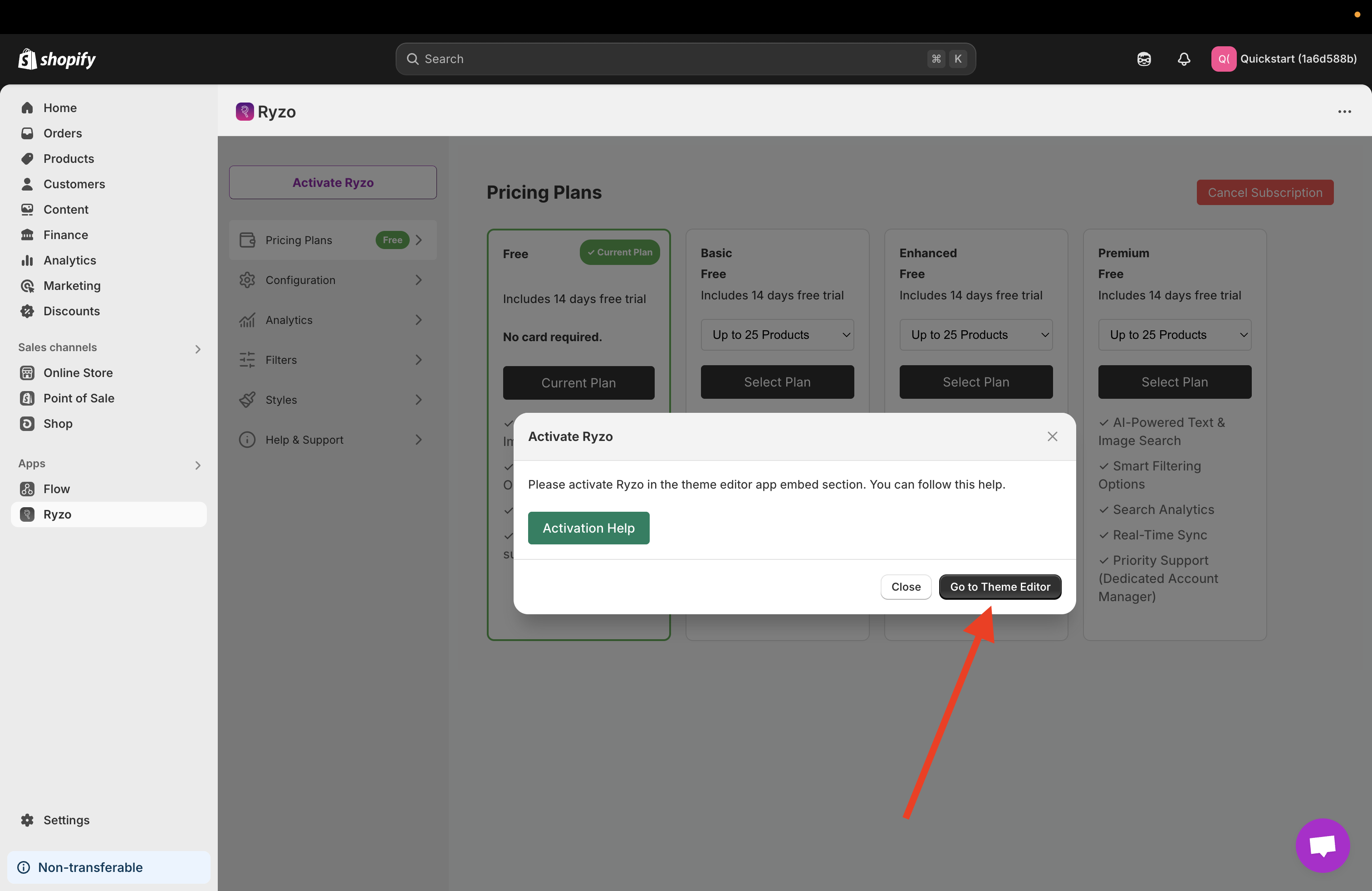
- click on "Go to Theme Editor" button
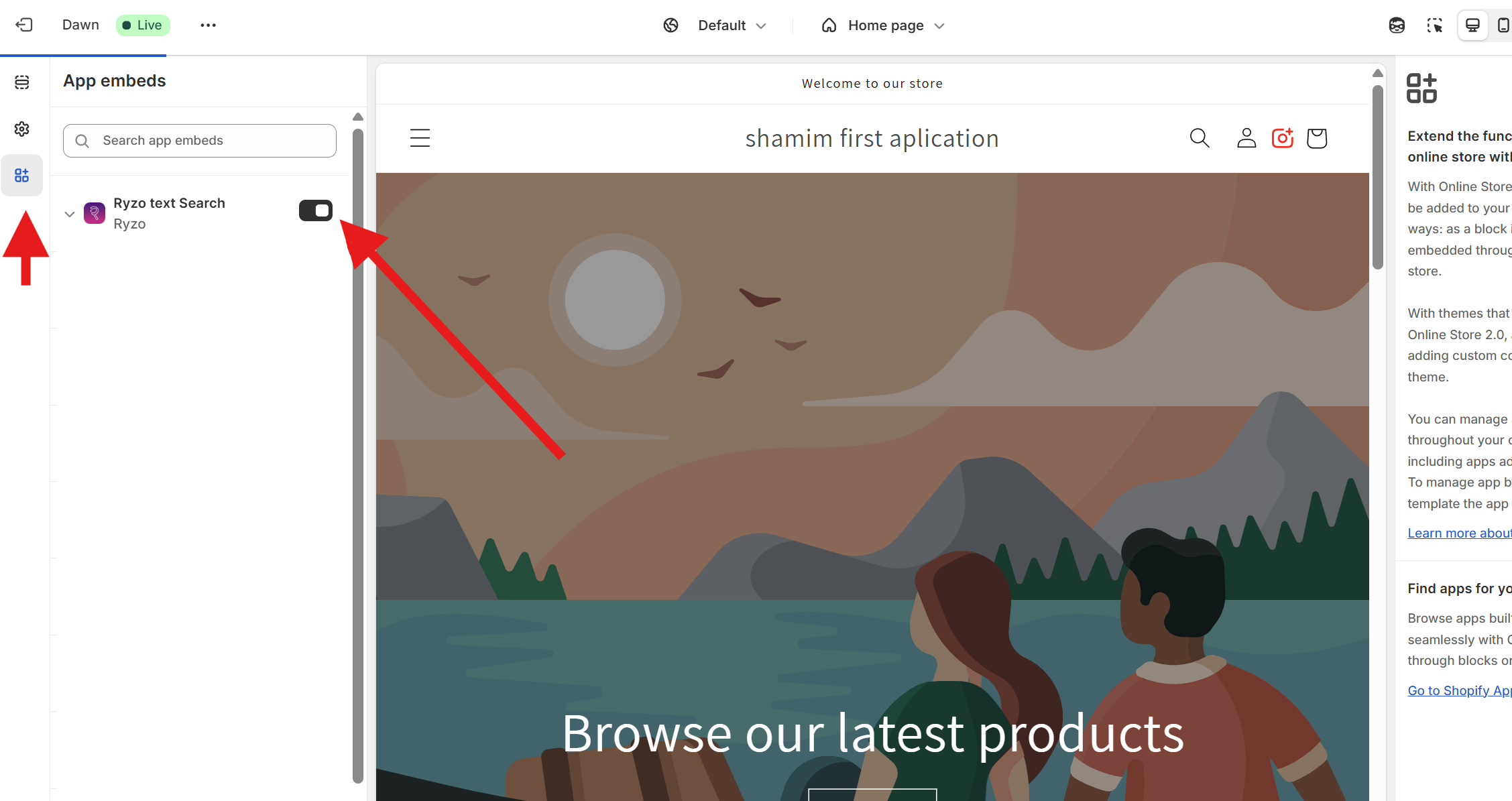
- You are redirected to theme editor, head over to app embeds, then click on the Ryzo app switch button and activate the app
How to Add the Image Search Icon to Your Store
Thank you for installing our app. Please follow the steps below to add the Image Search icon to your homepage via the Shopify admin panel.
Step-by-Step Instructions
- Log in to your Shopify Admin Panel
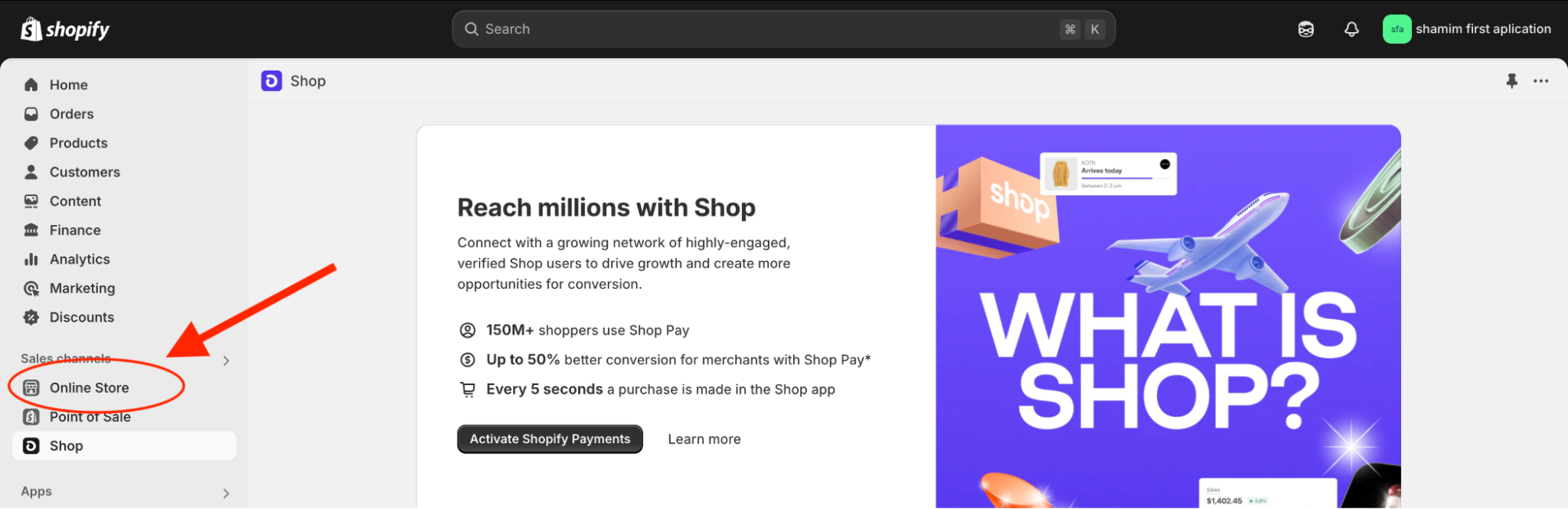
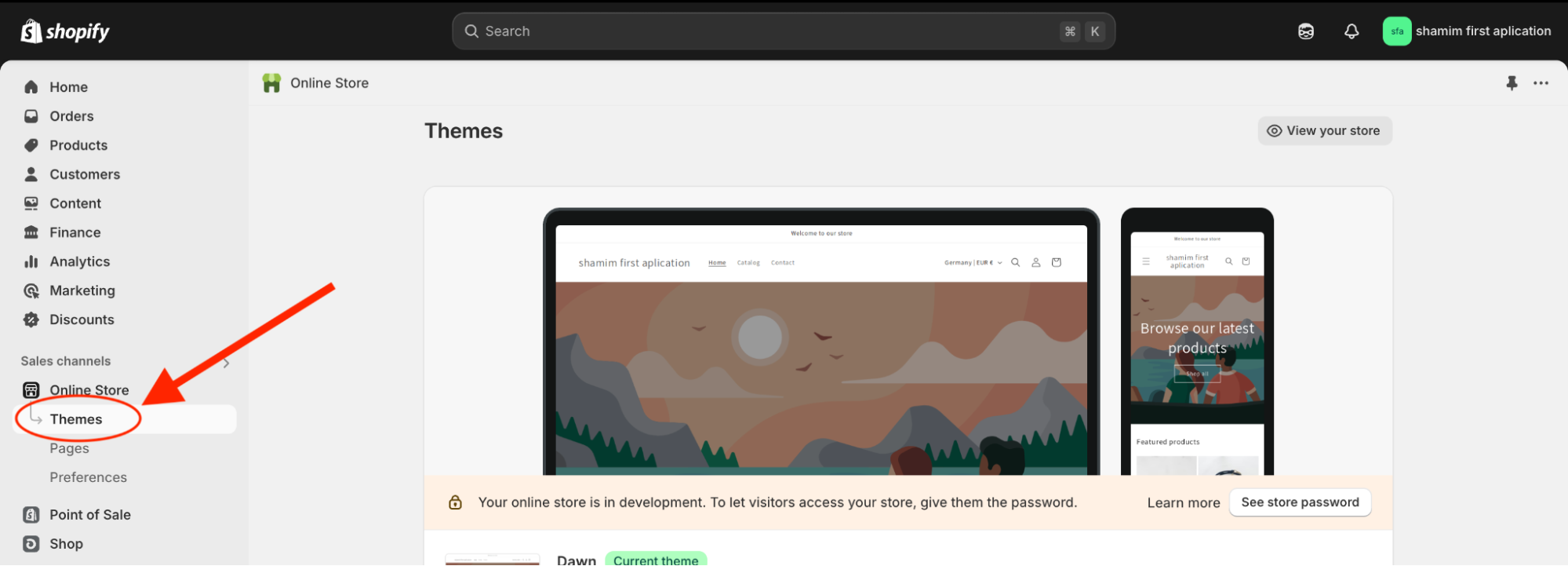
- Click on "Online Store" in the left-hand menu
- Click on "Themes"
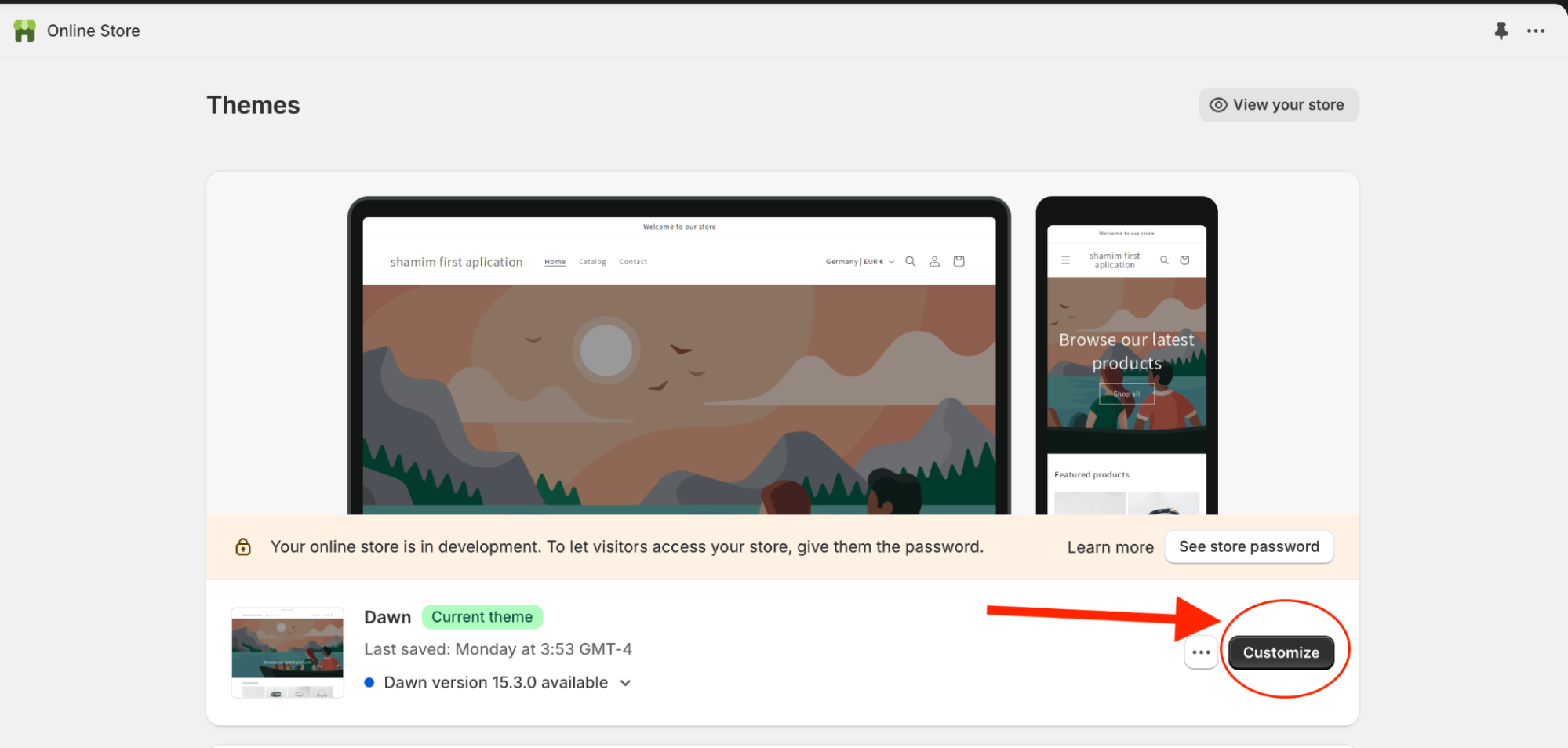
- Click on the "Customize" button for your current theme
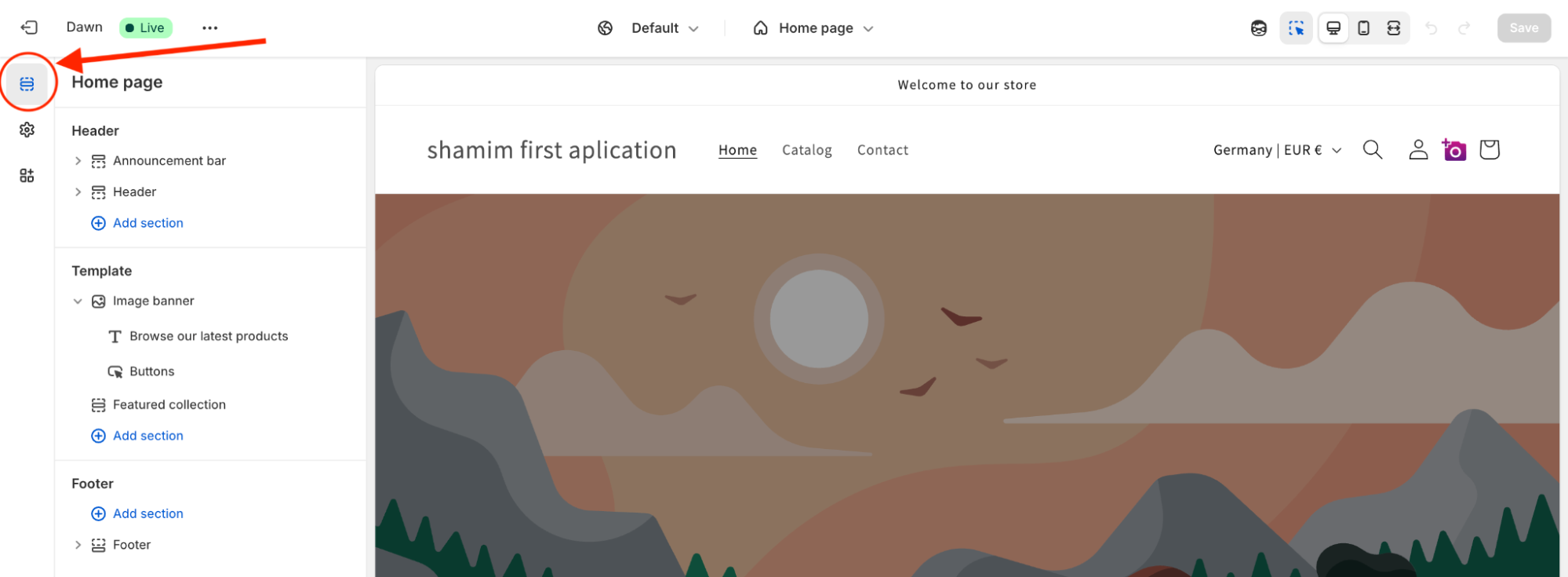
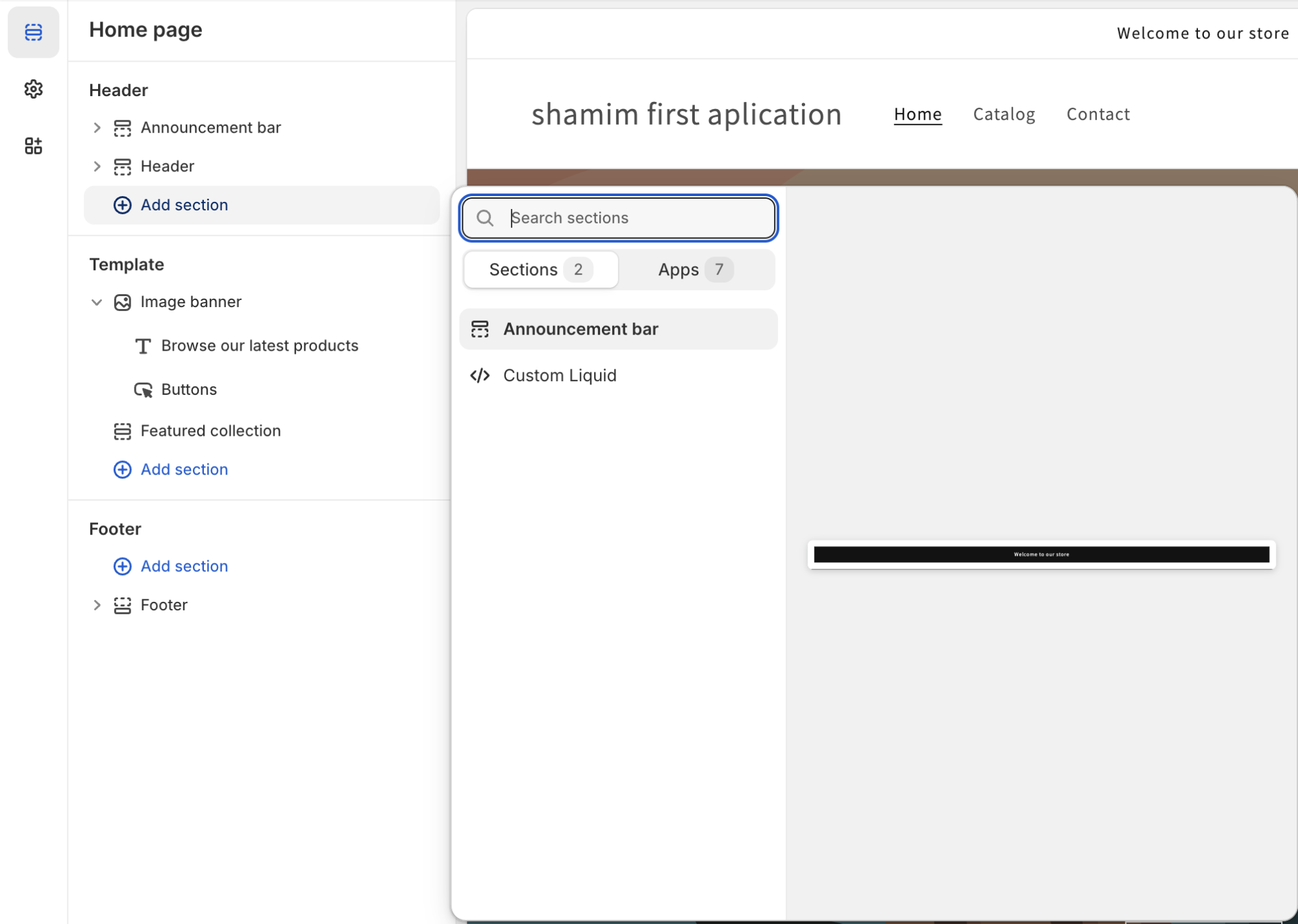
- In the theme editor, click on "Sections"
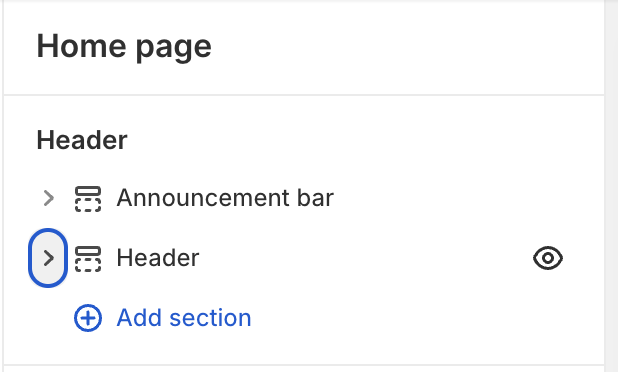
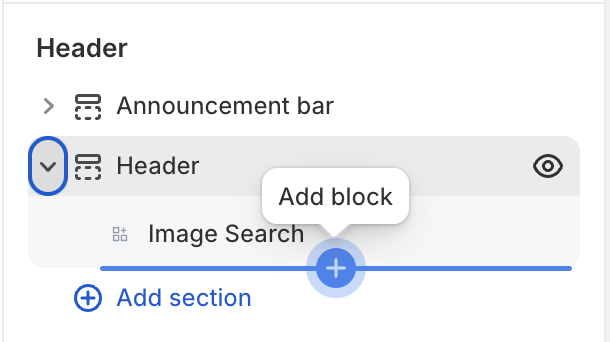
- Expand the Header Section
- Scroll down and click on "Add block"
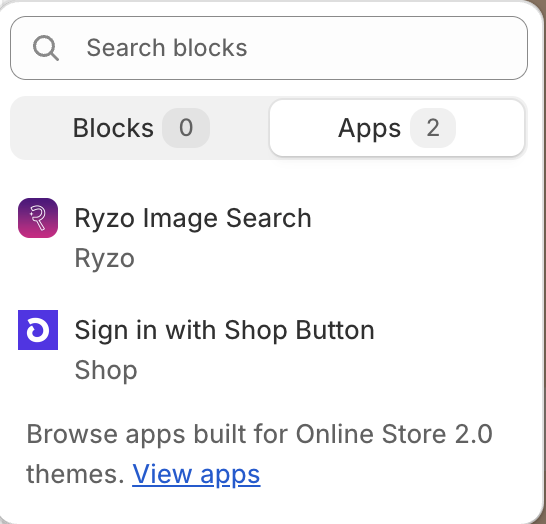
- In the block options, click on "Apps"
- From the list, select "Ryzo Image Search"
- Save and Exit From Top Right Corner

Once completed and saved, the Image Search icon will be added to your store's homepage, depending on your theme configuration.
For any questions or further assistance, please feel free to contact our support team at [email protected]
How to Enable the Image Search Float
Follow these steps to enable the floating Image Search button powered by Ryzo on your store.
Step-by-Step Instructions
- Log in to your Shopify Admin Panel
- Click on "Online Store" in the left-hand menu
- Click on "Themes"
- Click on the "Customize" button for your current theme
- In the theme editor, turn on the Float Image Search from the left sidebar under "App embeds"
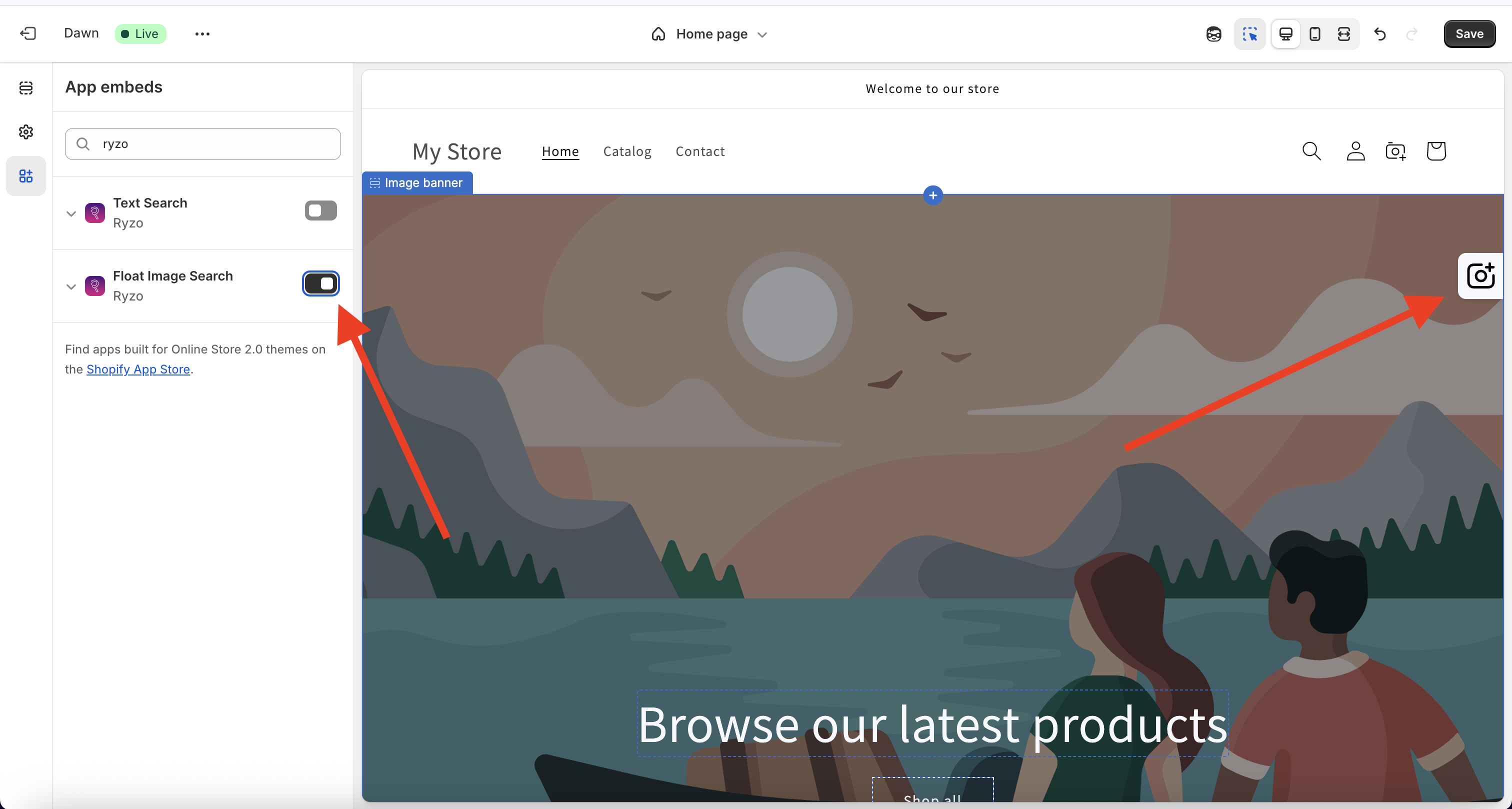
- Save and Exit from the top right corner
Once enabled and saved, the floating Image Search button will appear across your storefront. You can toggle it on or off anytime via the theme editor.
Need help? Reach out to us at [email protected]